

Manually keying in transactions from a PDF bank statement is one of the most tedious parts of bookkeeping. Whether you're closing the books for a client or reconciling your own small business accounts, getting your bank data into QuickBooks quickly and accurately can save hours every month. This article walks through exactly how to import a bank statement into QuickBooks, covers the different file formats QuickBooks accepts, highlights common errors, and shows how tools like Bank Statement Boss can remove the manual formatting work entirely.
Whether you use QuickBooks Online or QuickBooks Desktop, the core process is similar: get your transaction data into a compatible file format, then map the fields correctly so QuickBooks recognizes dates, descriptions, and amounts. The tricky part is almost always in the formatting — and that's where most people run into trouble.
Why Importing Bank Statements Into QuickBooks Matters
Bank reconciliation is the backbone of accurate bookkeeping. If your statement data isn't accurately reflected in QuickBooks, your reports, tax filings, and cash flow forecasts will all be off. Many businesses still receive statements as PDFs from their bank, especially for older accounts, business credit cards, or banks that don't support direct feeds.
Importing data manually introduces risk:
- Typos in transaction amounts or dates
- Missed transactions when scrolling through long PDF statements
- Duplicate entries when records are entered twice
- Hours of unbillable time for bookkeepers and accountants
Automating this step not only saves time, it also reduces the audit risk that comes with manual data entry. According to the AICPA, reconciliation errors remain one of the top reasons small businesses face inaccurate financial statements.
QuickBooks Import Formats: CSV, QBO, QFX, and OFX
Before importing anything, it helps to understand which file types QuickBooks actually accepts. Not all formats work the same way, and some are only supported in QuickBooks Online or Desktop, not both.
| File Format | Works With | Notes |
|---|---|---|
| CSV | QuickBooks Online | Requires manual column mapping; flexible but error-prone if formatted incorrectly |
| QBO | QuickBooks Online & Desktop | Native bank feed format; auto-matches to QuickBooks fields |
| QFX | QuickBooks Desktop | Quicken-style format often provided by banks |
| OFX | Older QuickBooks Desktop versions | Less common today, being phased out |
| Excel (XLSX) | QuickBooks Online (via CSV conversion) | Must be saved/converted to CSV before uploading |
QuickBooks Online typically prefers CSV or QBO files, while Desktop versions lean on QBO or QFX. If your bank only offers PDF statements — which is common for many community banks and credit unions — none of these formats are available by default, and you'll need to convert the PDF first.
Step-by-Step: How to Import a Bank Statement Into QuickBooks Online
Here's the standard workflow for QuickBooks Online users:
- Download or convert your statement. If your bank offers a CSV or QBO download, grab that. If you only have a PDF, convert it into a CSV using a tool like Bank Statement Boss, which extracts transaction data automatically and formats it for QuickBooks import.
- Navigate to Banking. From your QuickBooks Online dashboard, go to Transactions > Banking.
- Select "Link Account" or "Upload Transactions." Choose the option to manually upload a file rather than connecting a live bank feed.
- Choose your file and account. Select the CSV or QBO file, then assign it to the correct bank or credit card account in your chart of accounts.
- Map the columns. QuickBooks will ask you to match columns like Date, Description, and Amount to the corresponding fields in your file.
- Review and confirm. QuickBooks will show a preview of the transactions before finalizing the import — check for duplicate entries or misaligned columns.
- Categorize transactions. Once imported, go through the "For Review" tab to categorize each transaction or set up bank rules for recurring vendors.
This process works well when your CSV is already clean. The most common failure point is step 5 — column mapping — which breaks down when dates are formatted inconsistently, amounts are combined into a single column instead of separate debit/credit columns, or extra header rows confuse the parser.
Importing Into QuickBooks Desktop
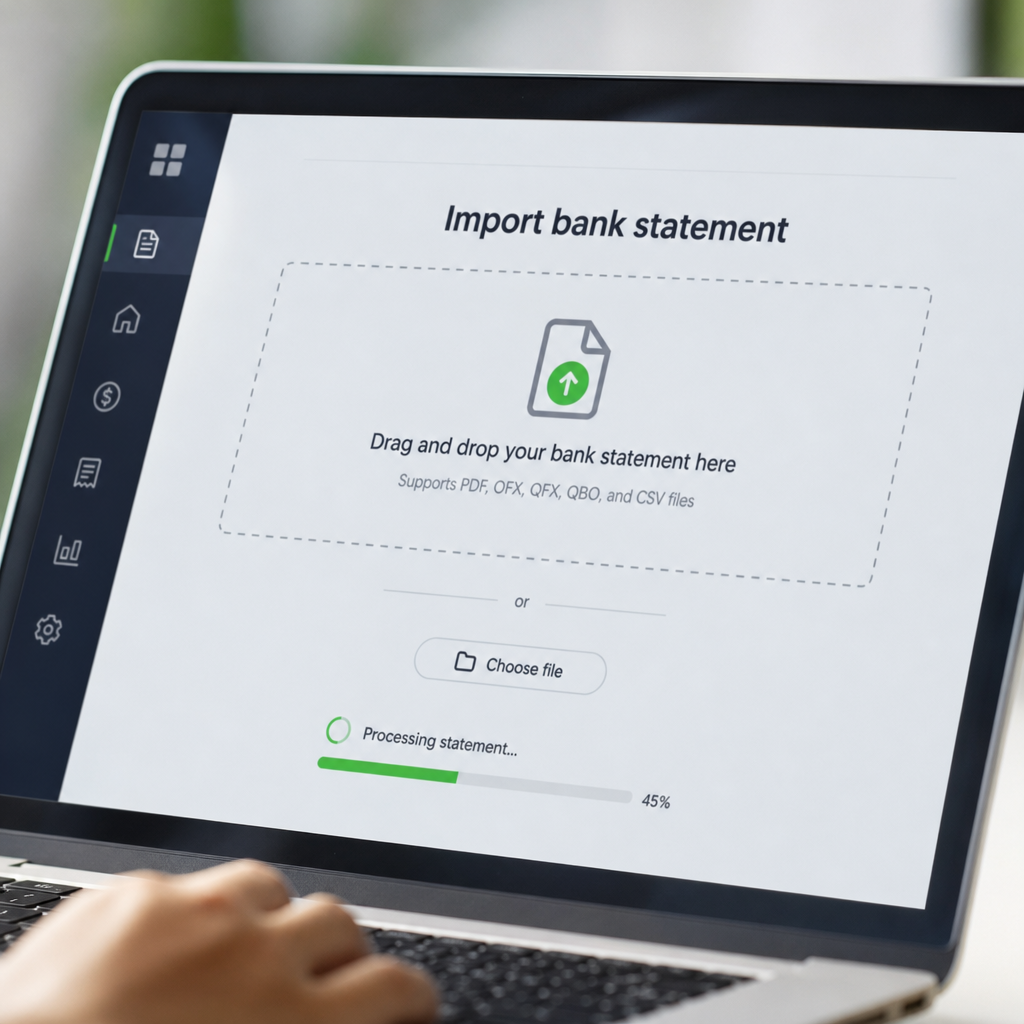
QuickBooks Desktop handles imports a bit differently, relying heavily on the QBO file format for bank feeds. Here's the general process:
- Open QuickBooks Desktop and go to Banking > Bank Feeds > Import Web Connect File.
- Select your QBO file (downloaded from your bank or converted from a PDF statement).
- Choose the QuickBooks account you want to apply the transactions to.
- Review the imported transactions in the Bank Feeds Center.
- Match or add transactions to your register.
If your bank doesn't offer QBO downloads, third-party conversion is often the only practical path. Services that convert PDFs to QBO or CSV formats are especially useful for Desktop users since Intuit's native import options are stricter about file structure than the Online version.
Common Errors When Importing Bank Statements (and How to Fix Them)
Even experienced bookkeepers run into formatting issues. Here are the most frequent problems and fixes:
- Date format mismatches. QuickBooks expects consistent date formatting (MM/DD/YYYY in the US). PDFs often show dates as DD/MM or written out in full, which can cause errors.
- Combined debit/credit columns. Some statements list all transactions in a single amount column with no indication of inflow versus outflow. QuickBooks needs this separated or marked with negative values for debits.
- Duplicate transactions. If you've already connected a live bank feed and also import a file covering the same date range, you'll likely create duplicates. Always check for overlapping dates before importing.
- Special characters and currency symbols. Dollar signs, commas, and extra whitespace in the amount column can cause the import to fail outright.
- Multi-page PDF statements. When converting PDFs manually, it is easy to miss transactions buried across multiple pages, especially with high-volume checking accounts.
| Common Error | Cause | Fix |
|---|---|---|
| Transactions imported as $0.00 | Currency symbols not stripped from CSV | Remove symbols before upload or use a converter that formats automatically |
| Duplicate entries in register | Overlapping bank feed and manual import | Cross-check date ranges before importing |
| Wrong transaction dates | Inconsistent date formats in source file | Standardize to MM/DD/YYYY |
| Missing transactions | Manual re-typing from multi-page PDF | Use automated PDF-to-CSV extraction |
| Import rejected entirely | Extra header rows or merged cells | Use a clean, single-header-row CSV template |
Converting PDF Bank Statements Before Import
The real bottleneck for most small business owners isn't the QuickBooks import screen — it's getting from a PDF bank statement to a usable spreadsheet in the first place. Manually retyping transactions is slow and invites mistakes, especially for statements with dozens or hundreds of line items.
This is where Bank Statement Boss fits into the workflow. It's built specifically to take PDF bank and credit card statements and convert them into clean, structured spreadsheets formatted for QuickBooks, Xero, and Sage. Instead of manually retyping each line, you upload the PDF and receive a ready-to-import file with properly separated columns for date, description, and amount, with debits and credits already split correctly.
Key features that matter for QuickBooks users specifically:
- Pre-formatted CSV output that matches QuickBooks' expected column structure, reducing mapping errors
- Multi-page PDF support, so no transactions get missed across long statements
- Secure data handling, which matters when dealing with sensitive financial records
- API access on higher-tier plans, useful for bookkeeping firms processing statements for multiple clients
- Support for multiple banks and formats, since not all statements are laid out the same way
For a freelance bookkeeper juggling multiple clients, or a finance team closing the books across several business accounts, this kind of automation can cut hours of manual work down to minutes.

Bank Feeds vs. Manual Import vs. PDF Conversion
It's worth understanding when each method makes sense, since QuickBooks supports more than one way to get data in.
| Method | Best For | Limitations |
|---|---|---|
| Live bank feed | Ongoing daily reconciliation | Not all banks support direct feeds; can disconnect unexpectedly |
| Manual CSV/QBO upload | One-time imports, historical data, bank switches | Requires correctly formatted file |
| PDF-to-spreadsheet conversion | Banks without feeds, old statements, bulk client work | Requires a converter tool like Bank Statement Boss for accuracy |
Live bank feeds are convenient but not universal — many regional banks, older business accounts, or international banks don't support a direct connection to QuickBooks. In those cases, PDF conversion followed by manual or bulk upload is often the only reliable option. This is especially true for accountants managing multiple clients across different banks, where consistency in formatting makes a measurable difference in review time.
The Intuit QuickBooks support site documents the native import process in detail, but it doesn't address what to do when your bank simply doesn't offer a compatible export — which is the gap that PDF conversion tools are designed to fill.
Best Practices for Clean Bank Statement Imports
To keep your QuickBooks file accurate and your reconciliation fast, follow these practices:
- Always back up your company file before a bulk import, especially in QuickBooks Desktop.
- Import in smaller batches (monthly rather than yearly) to make reviewing easier and catch errors early.
- Standardize date and currency formats before uploading, particularly if you're working with international statements.
- Use bank rules in QuickBooks Online to auto-categorize recurring vendors after the initial import.
- Reconcile immediately after import rather than waiting until month-end, so discrepancies are easier to trace.
- Keep a copy of the original PDF statement for audit purposes, even after conversion.
For bookkeepers managing several clients, building a repeatable checklist around these steps avoids the common trap of treating each import as a one-off task. Standardizing your process — ideally with the same converter and file template every time — keeps quality consistent across clients and reduces training time for new team members.
The Journal of Accountancy has also noted that firms adopting consistent digitization workflows for client financial documents see measurable reductions in month-end close times, reinforcing that the investment in automation tools pays off beyond just convenience.
Choosing the Right Tool for the Job
Not every business needs the same level of automation. A sole proprietor importing one checking account's statements each month has different needs than a bookkeeping firm processing statements for 40 clients across a dozen banks.
| Business Type | Recommended Approach |
|---|---|
| Solo freelancer, single bank account | Manual CSV export from bank, or occasional PDF conversion |
| Small business with multiple accounts | Automated PDF-to-CSV conversion for consistency |
| Bookkeeping or accounting firm | Bulk conversion tools with API access for scale |
| Finance team at a growing company | API integration directly into accounting stack |
If you're handling a high volume of statements regularly, it's worth looking beyond one-off conversions toward a tool that offers API access, allowing statement data to flow directly into your existing systems without manual uploads at all. This is particularly relevant for firms that also rely on outbound client communication tools; agencies using platforms like leadmailbox.com for client outreach often look for the same level of automation in their back-office financial workflows, pairing efficient communication with efficient data processing.
Security Considerations When Importing Financial Data
Bank statements contain sensitive information — account numbers, balances, and transaction histories. When choosing any tool to convert or import this data, confirm:
- Data is encrypted in transit and at rest
- Files are not retained longer than necessary, or can be deleted on request
- The provider has a clear privacy policy addressing financial document handling
- Access controls exist if multiple team members use the same account
The Federal Trade Commission provides guidance on safeguarding customer financial information, which is a useful reference point when evaluating any third-party service that touches your bank data. Bank Statement Boss, for example, emphasizes secure handling throughout the conversion process, which matters whether you're processing your own business statements or handling data on behalf of clients as a bookkeeper or accountant.
Final Thoughts
Getting bank statement data into QuickBooks doesn't have to mean hours of manual entry or wrestling with rejected CSV uploads. Understanding the file formats QuickBooks accepts, following a consistent import process, and catching common formatting errors before they happen will save significant time every month. For anyone still working from PDF statements, pairing that process with a dedicated conversion tool removes the most error-prone step entirely.
Bank Statement Boss was built to solve exactly this problem — turning messy PDF bank and credit card statements into clean, QuickBooks-ready spreadsheets in minutes, with the secure handling and formatting accuracy that small business owners, bookkeepers, and finance teams depend on. If PDF-to-QuickBooks conversion is slowing down your monthly close, visit bankstatementboss.com to see how automated conversion can get your books caught up faster and with far fewer errors.
Article written by FrontRank