

Bulk-converting bank statements should save time, not create new problems. Yet when small business owners, bookkeepers, and finance teams try to convert multiple bank statements to Excel in a single batch, they routinely run into misaligned columns, duplicated transactions, broken formulas, and hours of manual cleanup that erase any efficiency gains. The promise of automation quickly turns into a spreadsheet full of errors that someone has to fix by hand anyway.
This isn't because bulk conversion is inherently unreliable — it's because most people approach it the wrong way. They pick tools built for single-file conversion, ignore formatting inconsistencies across banks, or skip validation steps that catch errors before they reach QuickBooks or Xero. Below are the seven most common mistakes that derail bulk conversion projects, along with practical fixes for each one.
Mistake 1: Assuming All Bank Statement PDFs Are Structured the Same Way
One of the biggest misconceptions is that a PDF is a PDF. In reality, every bank formats its statements differently. Chase, Bank of America, Wells Fargo, and regional credit unions all use different column orders, date formats, and transaction groupings. Some statements list running balances, others don't. Some separate deposits and withdrawals into different columns, while others combine them into a single signed-amount column.
When you try to process a batch of statements from multiple banks using a generic tool or a one-size-fits-all script, the output often ends up misaligned. Dates land in the wrong column, or debit and credit amounts get flipped, silently corrupting your books.
The fix: Use a converter that has been trained specifically on a wide range of bank statement layouts, not just a generic OCR script. Tools purpose-built for this task, like Bank Statement Boss, recognize the structural differences between statement types and normalize them into a consistent output format regardless of the source bank.
Mistake 2: Ignoring Scanned or Image-Based PDFs
Not every bank statement is a clean, text-based PDF. Older statements, scanned documents, or files downloaded from third-party portals are often image-based, meaning there's no selectable text underneath — just a picture of the page. Standard copy-paste methods or basic PDF-to-Excel tools fail completely on these files because they rely on extracting existing text layers rather than reading the image itself.
This becomes a serious bottleneck when processing a batch of statements from multiple sources, especially if you're pulling records for a client's multi-year audit or year-end reconciliation. A batch job that works fine for 90% of files can stall entirely on the other 10% that are scanned images.
The fix: Confirm that your conversion tool uses optical character recognition (OCR) capable of reading image-based PDFs, not just extracting embedded text. According to IBM's documentation on OCR technology, modern OCR engines combine pattern recognition with machine learning to interpret scanned text far more accurately than older rule-based systems. A tool with robust OCR handles both digital and scanned statements in the same batch without manual sorting.
Mistake 3: Underestimating Formatting Requirements for Accounting Software
Converting a PDF to a spreadsheet is only half the job. If the resulting Excel file doesn't match the import specifications of your accounting platform, you've simply moved the manual work downstream. QuickBooks, Xero, and Sage each expect specific column headers, date formats, and categorization structures for clean imports.
A common mistake is exporting a generic spreadsheet with inconsistent headers like "Trans Date" in one file and "Date Posted" in another, then trying to import all of them into the same accounting system. This creates mapping errors and forces someone to manually reformat every file before it can be used.
The fix: Choose a conversion tool that offers built-in formatting templates for major accounting platforms. Bank Statement Boss, for example, structures output specifically for QuickBooks, Xero, and Sage compatibility, so bulk-converted files import cleanly without additional reformatting. This is especially valuable for freelance bookkeepers managing multiple clients on different platforms simultaneously.
Mistake 4: Skipping Data Validation Before Bulk Import
When you're converting one statement, it's easy to eyeball the results and catch an obvious error. When you're converting fifty or a hundred statements at once, that manual spot-check becomes impractical — and that's exactly when errors slip through. Transposed digits, misread decimal points, and duplicate transactions can all silently corrupt your books if you import bulk data without validation.
This is particularly risky for finance teams reconciling multiple accounts across a fiscal quarter, where a single misread transaction can throw off an entire balance sheet.
The fix: Build a validation step into your workflow before importing anything into your accounting system. Best practices include:
- Cross-checking the converted total balance against the original PDF's closing balance.
- Scanning for duplicate transaction IDs or timestamps.
- Verifying that debit and credit columns sum correctly against the statement's summary section.
- Spot-checking a sample of at least 10% of transactions per file for accuracy.
Tools with built-in balance verification reduce this burden considerably, flagging discrepancies automatically rather than requiring a manual audit of every row.
Mistake 5: Overlooking Data Security During Bulk Uploads
Bank statements contain sensitive financial data — account numbers, balances, and transaction histories that reveal spending patterns and vendor relationships. When processing statements in bulk, especially for multiple clients at once, the security of the conversion tool matters more, not less. A breach affecting a batch of fifty client statements is exponentially more damaging than one affecting a single file.
Unfortunately, many free or low-cost bulk conversion tools store uploaded files indefinitely, lack encryption in transit, or don't clearly disclose their data retention policies. This is a serious liability for bookkeepers and accountants bound by confidentiality obligations to their clients.
The fix: Vet any conversion tool's security practices before uploading batches of sensitive documents. Look for:
- End-to-end encryption during upload and processing
- Clear data retention and deletion policies
- Compliance with recognized data protection standards
- Options for on-premise or private cloud processing for enterprise clients
For businesses that also need broader digital security auditing beyond document conversion, working with a dedicated security partner such as nexussecurityserviceses.com can help ensure your entire financial data pipeline — not just the conversion step — meets modern security standards. Bank Statement Boss itself is built around secure handling practices, including encrypted processing and automatic file deletion after conversion, which matters considerably more when you're uploading dozens of statements at once rather than a single file.
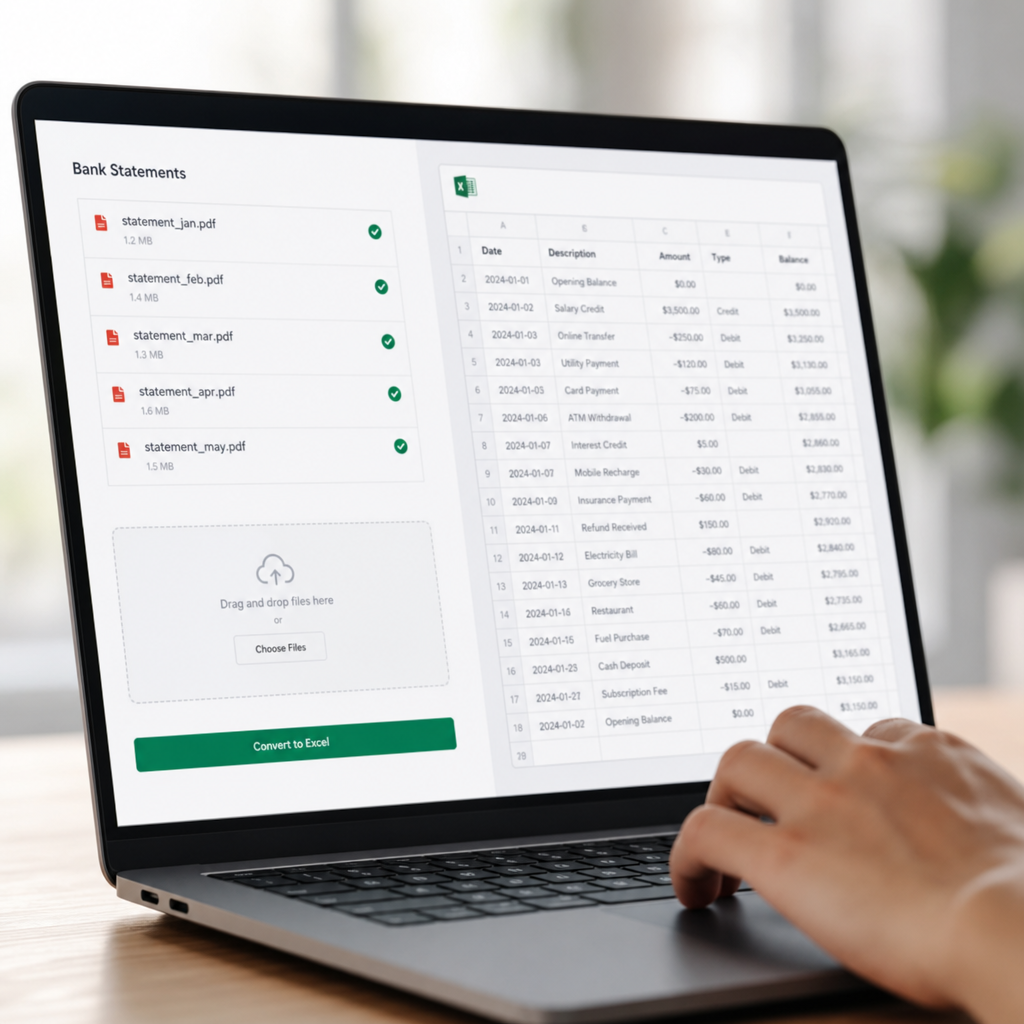
Mistake 6: Choosing Tools That Can't Actually Scale
Many bank statement converters are designed with single-file use cases in mind — a freelancer converting one monthly statement, for example. When bookkeepers or finance teams try to push these tools into bulk workflows, they hit hard limits: file count caps, slow sequential processing, or interfaces that require re-uploading and reconfiguring settings for every file.
This mismatch between tool design and actual use case is one of the most common reasons bulk conversion projects take far longer than expected. A task that should take twenty minutes stretches into hours because the tool wasn't built to handle volume.
The fix: Before committing to a bulk conversion project, confirm the tool supports genuine batch processing — meaning multiple files uploaded simultaneously, processed in parallel, and exported as either separate files or one consolidated spreadsheet. For teams with recurring, high-volume needs, API access (available on higher-tier Bank Statement Boss plans) allows direct integration into existing workflows, eliminating manual uploads entirely.
Here's a comparison of how different conversion approaches handle scale:
| Conversion Method | Handles Multiple Files at Once | Accounting Software Formatting | Typical Time for 20 Statements |
|---|---|---|---|
| Manual data entry | No | Manual formatting required | 6–10 hours |
| Generic PDF-to-Excel tool | Limited (one at a time) | None | 2–4 hours |
| Basic OCR software | Partial batch support | Minimal | 1–2 hours |
| Outsourced data entry service | Yes, but with turnaround delay | Varies by provider | 24–72 hour turnaround |
| Bank Statement Boss (AI-powered) | Yes, true batch processing | Built-in QuickBooks/Xero/Sage formatting | 10–20 minutes |
Mistake 7: Not Accounting for Multi-Currency or International Statement Formats
For businesses operating across borders, or bookkeepers managing clients with international accounts, bulk conversion introduces another layer of complexity: currency symbols, date formats (DD/MM/YYYY versus MM/DD/YYYY), and decimal separators vary by country. A tool that works flawlessly on US-based statements can misinterpret a European statement's comma-as-decimal formatting, leading to figures that are off by orders of magnitude.
This mistake is easy to miss because the error doesn't always look obviously wrong — a misplaced decimal can produce a plausible-looking but incorrect number that slips past a quick review.
The fix: If your batch includes statements from multiple countries or currencies, confirm your conversion tool explicitly supports regional formatting differences and normalizes them consistently. According to guidance from the Financial Accounting Standards Board, consistent currency and date formatting is essential for accurate financial reporting, particularly when consolidating multi-entity or multi-currency records.
Choosing the Right Approach for Bulk Conversion
Once you've addressed these seven pitfalls, the remaining decision is which overall approach fits your workflow best. Below is a breakdown of the three most common paths businesses take when converting multiple bank statements to Excel.
| Approach | Best For | Drawbacks |
|---|---|---|
| In-house manual entry | Very small batches (1-2 statements) | Slow, error-prone, doesn't scale |
| Outsourced bookkeeping service | Businesses without time to manage tools | Recurring cost, turnaround delays, third-party data access |
| AI-powered bulk converter (e.g., Bank Statement Boss) | Recurring bulk conversion needs, multi-client bookkeeping | Requires initial tool setup and file review |
For most small businesses and bookkeeping practices handling recurring monthly or quarterly statement batches, an AI-powered converter offers the best balance of speed, accuracy, and cost control. The Consumer Financial Protection Bureau has also emphasized the importance of accurate financial record-keeping for small businesses, particularly when preparing for loan applications, audits, or tax filings — all situations where clean, bulk-converted statement data becomes essential.
Best Practices for a Smooth Bulk Conversion Workflow
Beyond avoiding the mistakes above, a few workflow habits make bulk conversion consistently reliable:
- Standardize file naming before uploading a batch, so converted outputs are easy to trace back to the correct account or client.
- Batch by bank or format type when possible, even if your tool supports mixed formats — this makes spot-checking faster.
- Set a recurring schedule (weekly or monthly) rather than letting statements pile up into massive, unwieldy batches.
- Keep a backup of original PDFs for at least one fiscal year, even after conversion, in case of audit requests.
- Review API documentation if you're integrating conversion into existing accounting software workflows, to ensure field mapping matches your chart of accounts.

Why the Right Tool Changes the Bulk Conversion Equation Entirely
The seven mistakes outlined above share a common thread: they all stem from treating bulk statement conversion as simply "doing single-file conversion more times." In reality, bulk conversion requires different infrastructure — parallel processing, format normalization across banks, built-in validation, and accounting-software-ready output — that most basic tools were never designed to provide.
This is precisely the gap that purpose-built platforms aim to close. Rather than stitching together a workaround using generic PDF tools, spreadsheet macros, and manual review, a dedicated bulk conversion tool handles format recognition, OCR, validation, and export formatting as a single streamlined process. For bookkeepers managing multiple clients or finance teams closing the books each month, that difference translates directly into hours saved and fewer costly errors reaching the general ledger.
Final Thoughts
Converting multiple bank statements to Excel doesn't have to mean hours of manual cleanup, mismatched formats, or security guesswork. The mistakes covered here — assuming uniform PDF structures, ignoring scanned documents, skipping accounting-software formatting, forgoing validation, overlooking security, choosing tools that don't scale, and neglecting international formatting — are all avoidable with the right process and the right tool.
Bank Statement Boss was built specifically to solve these bulk conversion challenges, offering AI-powered extraction, accounting-ready formatting for QuickBooks, Xero, and Sage, secure data handling, and API access for teams that need to scale beyond manual uploads. If your bookkeeping practice or finance team is still fighting with statement conversion one file at a time, it may be time to see what a purpose-built bulk solution from bankstatementboss.com can do for your workflow.
Article written by FrontRank