
Converting bank statements from PDF format to Excel spreadsheets is a common challenge faced by accountants, bookkeepers, and financial professionals daily. Whether you're dealing with monthly reconciliations, preparing financial reports, or organizing client data, the ability to efficiently transform static PDF bank statements into dynamic Excel worksheets can save hours of manual data entry and significantly reduce errors in your accounting workflow.
Why Convert Bank Statements to Excel?
The transition from paper-based banking to digital statements has created new opportunities for financial data management. While PDF statements provide a secure, standardized format for banks to deliver account information, they present limitations when it comes to data manipulation and analysis.
Benefits of Excel Format for Financial Data
Excel offers numerous advantages for financial professionals working with bank statement data:
- Data Manipulation: Sort, filter, and organize transactions by date, amount, or description
- Formula Integration: Calculate running balances, categorize expenses, and create automated reconciliations
- Pivot Tables: Generate comprehensive reports and analyze spending patterns
- Import Compatibility: Seamlessly integrate with QuickBooks, Xero, and other accounting software
- Client Reporting: Create professional financial summaries and custom reports
- Backup and Storage: Maintain organized digital records for audit trails
Common Challenges with PDF Bank Statements
PDF bank statements, while secure and standardized, present several obstacles for financial professionals:
- Manual data entry requirements leading to time consumption
- High risk of transcription errors
- Difficulty in extracting specific transaction data
- Limited search and filtering capabilities
- Incompatibility with accounting software direct imports
Manual Methods for Converting Bank Statements to Excel
Several manual approaches exist for converting bank statement data to Excel format, each with varying degrees of efficiency and accuracy.
Copy and Paste Method
The most basic approach involves copying data directly from PDF statements:
- Open the PDF bank statement in a PDF reader
- Select the transaction data table
- Copy the selected content (Ctrl+C)
- Open Excel and paste the data (Ctrl+V)
- Clean up formatting and organize columns
While straightforward, this method often results in misaligned data and requires significant cleanup time.
PDF Text Extraction Tools
More sophisticated manual methods utilize Adobe Acrobat or similar PDF editing software to extract tabular data. These tools can sometimes preserve table structure better than simple copy-paste operations, but still require manual verification and formatting.
Automated Bank Statement Conversion Solutions
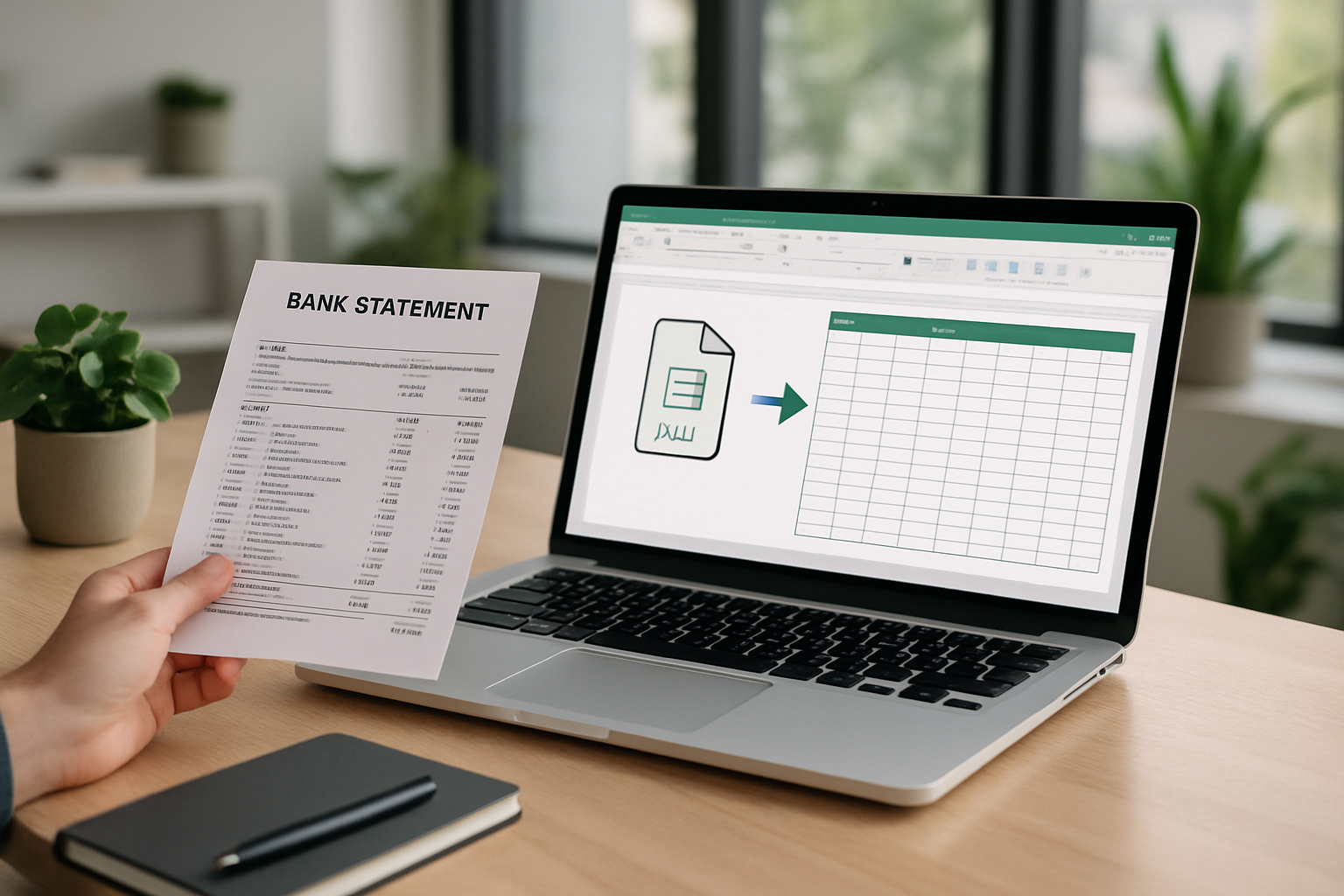
As the demand for efficient financial data processing has grown, numerous automated solutions have emerged to streamline the bank statement to Excel conversion process.
OCR-Based Conversion Tools
Optical Character Recognition (OCR) technology forms the foundation of many conversion tools. These solutions scan PDF documents and attempt to recognize text and tabular data for export to Excel format. However, traditional OCR tools often struggle with complex bank statement layouts and may produce inconsistent results.
AI-Powered Conversion Platforms
Modern AI-powered platforms represent the cutting edge of bank statement conversion technology. These solutions use machine learning algorithms trained specifically on financial documents to achieve higher accuracy rates and better format recognition.
Bank Statement Boss exemplifies this advanced approach, utilizing AI technology to convert PDF bank and credit card statements with 99% accuracy while supporting multiple output formats including Excel, CSV, and direct accounting software integration.
Step-by-Step Guide: Converting Bank Statements to Excel
Follow this comprehensive process to efficiently convert your bank statements to Excel format:
Preparation Phase
- Gather Documents: Collect all PDF bank statements requiring conversion
- Organize Files: Create a structured folder system with clear naming conventions
- Verify Quality: Ensure PDF files are clear and readable
- Choose Method: Select the conversion approach based on volume and accuracy requirements
Conversion Process
For automated conversion using AI-powered tools:
- Upload your PDF bank statement to the conversion platform
- Select Excel as your desired output format
- Configure column mapping and data preferences
- Initiate the conversion process
- Review the converted data for accuracy
- Download the Excel file
Post-Conversion Data Cleanup
Even with automated tools, some cleanup may be necessary:
- Verify transaction dates are properly formatted
- Check that monetary amounts are recognized as numbers
- Ensure description fields are complete
- Add headers if not automatically included
- Remove any duplicate entries
Comparison of Bank Statement Conversion Methods
Understanding the trade-offs between different conversion approaches helps in selecting the most appropriate method for your needs:
| Method | Accuracy | Time Required | Cost | Best For |
|---|---|---|---|---|
| Manual Copy-Paste | Variable (60-80%) | High | Free | Single statements, occasional use |
| OCR Tools | Moderate (70-85%) | Medium | Low-Medium | Regular processing, budget-conscious |
| AI-Powered Platforms | High (95-99%) | Low | Medium | Professional use, high volume |
Excel Formatting Best Practices for Bank Statement Data
Once your bank statement data is in Excel format, proper organization and formatting ensure maximum usability and compatibility with accounting systems.
Standard Column Structure
Organize your Excel worksheet with these essential columns:
- Date: Transaction date in consistent format (MM/DD/YYYY or DD/MM/YYYY)
- Description: Transaction description or payee information
- Reference: Check numbers, transaction IDs, or reference codes
- Debit: Amounts reducing account balance
- Credit: Amounts increasing account balance
- Balance: Running account balance after each transaction
- Category: Custom field for expense categorization
Data Validation and Quality Control
Implement these validation steps to ensure data integrity:
- Verify that opening and closing balances match the bank statement
- Check for proper date sequencing
- Ensure all monetary values are formatted as numbers
- Validate that debits and credits are correctly categorized
- Cross-reference transaction counts with the original statement
Integration with Accounting Software
Converting bank statements to Excel often serves as an intermediate step toward importing data into accounting platforms like Xero or Sage.
File Format Requirements by Platform
| Accounting Software | Preferred Format | Required Fields | Special Considerations |
|---|---|---|---|
| QuickBooks | CSV, Excel | Date, Description, Amount | Separate debit/credit columns preferred |
| Xero | CSV | Date, Amount, Description, Reference | Specific date format required (DD/MM/YYYY) |
| Sage | CSV, Excel | Date, Reference, Description, Amount | Account codes may be required |
Import Preparation Checklist
Before importing Excel data into accounting software:
- Remove header rows that aren't data
- Ensure consistent date formatting
- Verify all amounts are numerical values
- Remove special characters from descriptions
- Save as CSV format if required by your accounting platform
Time and Cost Analysis
Understanding the financial impact of different conversion methods helps justify investment in automated solutions:
| Processing Volume | Manual Method (Cost/Hour) | Time Investment | AI Solution Cost | Time Savings |
|---|---|---|---|---|
| 10 statements/month | $50-75 | 5-8 hours | $25-50 | 4-7 hours |
| 50 statements/month | $250-375 | 25-40 hours | $75-150 | 20-35 hours |
| 100 statements/month | $500-750 | 50-80 hours | $150-300 | 40-70 hours |
Common Issues and Troubleshooting
Even with the best conversion tools, certain challenges may arise during the bank statement to Excel conversion process.
Data Recognition Problems
Common issues include:
- Misaligned columns: Often occurs with complex PDF layouts
- Date format confusion: Different banks use varying date formats
- Currency symbol recognition: Dollar signs and decimal places may be misinterpreted
- Multi-line descriptions: Transaction details spanning multiple lines
Quality Assurance Strategies
Implement these verification steps:
- Compare total transaction counts between PDF and Excel
- Verify opening and closing balance accuracy
- Spot-check random transactions for description accuracy
- Validate date ranges and sequencing
- Cross-reference large or unusual transactions
Security Considerations
When converting sensitive bank statement data, security should be a primary concern, especially when using online conversion tools.
Data Protection Best Practices
- Choose conversion platforms with robust security protocols
- Verify that uploaded data is encrypted during transmission
- Ensure automatic deletion of files after processing
- Review privacy policies and data handling practices
- Consider on-premise solutions for highly sensitive data
Compliance Requirements
Financial professionals must consider regulatory compliance when handling client bank statement data:
- GDPR requirements for EU client data
- SOX compliance for public company financial data
- Industry-specific regulations (banking, healthcare, etc.)
- Client confidentiality agreements
Future of Bank Statement Processing
The evolution of financial technology continues to improve the bank statement to Excel conversion process. Emerging trends include:
- Enhanced AI Accuracy: Machine learning models becoming more sophisticated
- Real-time Processing: Instant conversion capabilities
- Direct Bank Integration: APIs enabling direct data feeds
- Blockchain Verification: Enhanced security and audit trails
- Mobile Optimization: Smartphone-based conversion capabilities
Selecting the Right Conversion Solution
Choosing the optimal bank statement conversion method depends on several factors specific to your practice or business needs.
Evaluation Criteria
Consider these factors when selecting a conversion solution:
- Volume Requirements: Monthly statement processing quantity
- Accuracy Standards: Acceptable error rates for your use case
- Budget Constraints: Cost per statement or monthly subscription limits
- Integration Needs: Compatibility with existing accounting software
- Security Requirements: Data protection and compliance needs
- Support Quality: Technical assistance and training availability
Trial and Testing Approach
Before committing to a solution:
- Test with a small sample of diverse bank statements
- Measure accuracy rates across different bank formats
- Evaluate ease of use and learning curve
- Assess customer support responsiveness
- Calculate total cost of ownership including time savings
Converting bank statements to Excel format represents a critical efficiency opportunity for financial professionals. Whether handling a few statements monthly or processing hundreds of documents, the right approach can save significant time while improving data accuracy and analytical capabilities. Modern AI-powered solutions like Bank Statement Boss have revolutionized this process, offering 99% accuracy rates and seamless integration with popular accounting platforms. By understanding the available options, implementing best practices, and selecting the appropriate tools for your specific needs, you can transform this traditionally time-consuming task into a streamlined, automated process that enhances your overall financial workflow and client service capabilities.
Article written using FrontRank.